
Most digital creators spend hours capturing the perfect shot, then upload it with whatever default settings the platform applies. That's where the opportunity gets lost. Understanding what is customizable image settings means knowing that you control far more than just brightness and crop. You control how your content looks, how your brand is perceived, and critically, how much of your digital footprint goes along for the ride. For anyone managing social media accounts at scale, those details are the difference between content that performs and content that disappears.
Table of Contents
- Key takeaways
- What is customizable image settings: a practical breakdown
- Technical mechanisms behind image customization
- Benefits of customizing your image settings
- Common pitfalls and how to avoid them
- Applying customizable settings in a real workflow
- My take on what creators consistently get wrong
- How One2many makes image customization work at scale
- FAQ
Key takeaways
| Point | Details |
|---|---|
| Customizable settings go beyond filters | Parameters like saturation, cropping, and metadata control give creators real brand power. |
| Smart cropping beats center cropping | AI object detection keeps subjects in frame far better than standard cover strategies. |
| Non-destructive editing protects originals | Applying adjustments without overwriting source files preserves long-term asset quality. |
| Privacy controls are part of image settings | Removing metadata and generating visual variations protects your digital footprint on social platforms. |
| Presets save time but need careful management | Poorly managed presets can cause settings drift or strip important data without warning. |
What is customizable image settings: a practical breakdown
Custom image settings explained simply: they are any parameter you can deliberately adjust to change how an image looks, behaves technically, or carries data. That covers a wide range of controls depending on where you are in your workflow.
On a camera, customizable settings include:
- Sharpness and clarity for edge definition
- Contrast to manage tonal range between highlights and shadows
- Saturation and hue for color intensity and temperature
- White balance to correct or stylize color temperature
- Picture profiles or modes that bundle multiple adjustments into a single selectable preset
- Exposure compensation for consistent brightness across varied shooting conditions
In photo editing software, image settings customization expands further. You get curve adjustments, selective color masking, noise reduction, lens correction, and output sharpening targeted at screen versus print. Platforms like Affinity Photo use non-destructive editing workflows that let you experiment freely without permanently altering source files.
On social media platforms, the concept shifts again. Here, customizable settings often mean choosing how an image is cropped for different placements, selecting thumbnail frames, adjusting alt text, or controlling privacy permissions on who can view or share your content. These are not aesthetic choices alone. They are strategic ones.
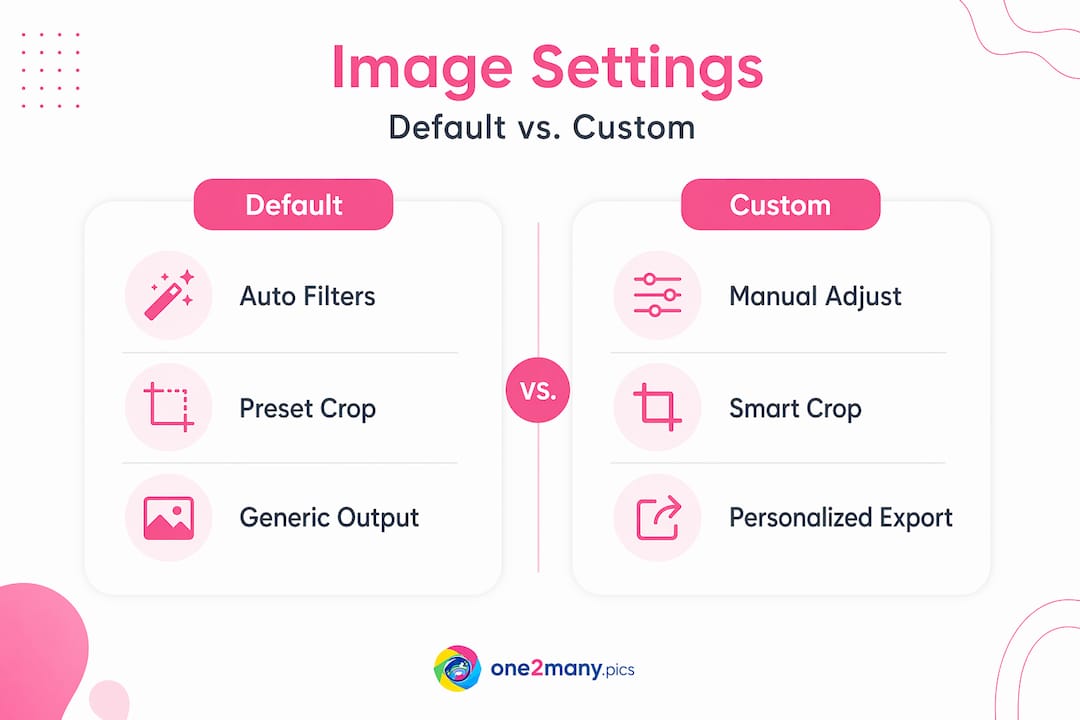
The difference between default and custom settings is straightforward. Default settings are what the device or platform applies when you do nothing. Custom settings reflect deliberate decisions, often saved as presets, that you apply consistently to reinforce a visual identity. For marketers managing multiple accounts or campaigns, that distinction matters enormously.
Technical mechanisms behind image customization
Understanding image settings at a technical level gives you real leverage. Three mechanisms stand out for digital creators and marketers: smart cropping, AI-guided generation, and responsive image loading.
Smart cropping vs. standard cropping
Standard cropping cuts from the center of an image. That works fine if your subject is always centered, but most interesting photography is not. Smart cropping uses AI object detection to identify subjects within the frame, then selects the crop region around them regardless of composition. This means a subject positioned to the left third of a frame stays visible and prominent, even when the image is resized or reformatted for a different aspect ratio.
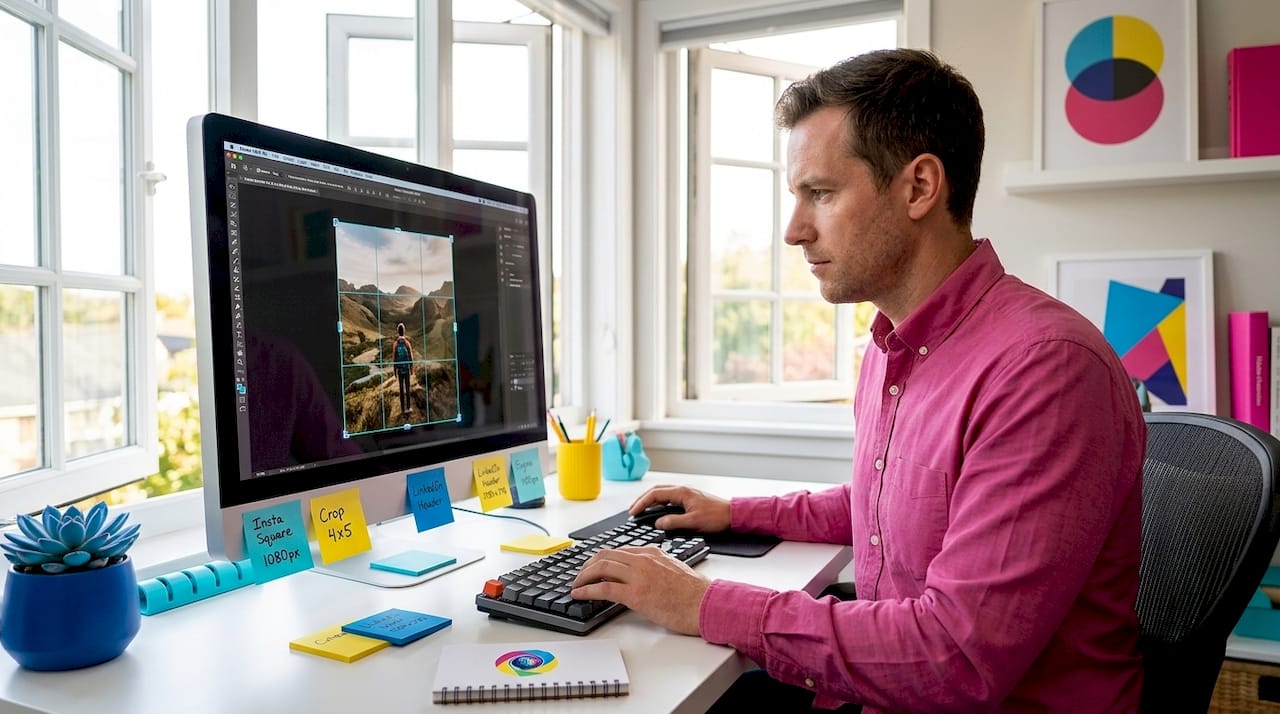
For social media creators working across platforms with different dimension requirements, this is significant. Instagram Stories, Facebook feed posts, and LinkedIn banners all demand different ratios. Manual re-cropping every image for every format is time-consuming and inconsistent. Smart cropping removes that friction.
Controlled customization with generative AI
Generative AI workflows introduce another layer of image settings customization. Controlled customization lets users guide AI-generated images using structural signals from a source image, such as edge maps or depth cues. The system blends new content with the source signal's visual structure. The recommended control scale sits between 0.9 and 1.0, with 0.95 as the default. This balance preserves visual coherence while allowing meaningful creative variation.
| Mechanism | What it does | Best for |
|---|---|---|
| Smart cropping | Detects subjects; crops around them | Multi-format social posts |
| AI controlled customization | Guides new image generation with source signals | Creative variation at scale |
| Responsive srcset/sizes | Serves optimal image file per device | Web performance and UX |
| Local browser processing | Processes images on-device without cloud upload | Privacy-conscious creators |
Responsive image loading
On the web side, srcset and sizes attributes tell browsers which image file to load based on the viewer's viewport width, device pixel ratio, and connection speed. This is image settings customization working invisibly at a technical level. You provide multiple image variants at different resolutions; the browser picks the right one. For marketers running content across desktop and mobile, this optimization directly affects page load speed and user engagement.
Pro Tip: When exporting images for web, generate at least three size variants (small, medium, large) and use srcset in your HTML. A 400kb image served to a mobile user on a slow connection costs you engagement. A 60kb version of the same image at the right resolution costs you nothing.
Benefits of customizing your image settings
The payoff from mastering image settings customization is concrete and measurable. Here are the core advantages that matter to creators and marketers specifically.
-
Brand consistency across every touchpoint. Custom picture controls allow you to save specific combinations of sharpness, contrast, and color response so every image from a shoot shares the same visual signature. When your feed looks unified, audiences recognize your content before they even read your caption.
-
Improved engagement through tailored visuals. Color psychology and contrast levels affect how audiences respond emotionally. Adjusting color settings for branding gives your content a deliberate emotional tone rather than a random one.
-
Privacy protection through metadata control. Every image file carries metadata: location data, device model, timestamp, and more. Removing or altering this data before posting protects you from revealing information you did not intend to share. Browser-based tools that process locally never upload your file to a server, which eliminates the risk of cloud-side data exposure.
-
Non-destructive editing workflows. Non-destructive editing preserves original files while you apply filters, color grades, and adjustments on separate layers. Years later, you can still access and re-export the original at full quality.
-
Content variation without duplication flags. On platforms that use duplicate detection algorithms, posting visually identical images across multiple accounts triggers suppression. Generating visual variations through controlled image settings changes enough pixel-level data to register as unique content.
"The creators who scale fastest are not the ones with the most content. They are the ones who get the most reach from each piece of content they produce. Customizable image settings are how they do it." — One2many
Common pitfalls and how to avoid them
Personalizing image settings rewards careful attention. These mistakes show up repeatedly, and most of them are easy to prevent.
- Losing metadata you actually need. Some metadata is private and should be stripped before posting. Other metadata, like copyright attribution or color profile information, should stay. Blanket metadata removal can cause color rendering issues or strip licensing information you want attached to your work.
- Unintended subject cropping. Automated cropping tools, even smart ones, occasionally misidentify the main subject. Always review cropped outputs before publishing, especially when your composition uses negative space or unusual framing.
- Settings drift in camera presets. Fujifilm's custom settings behave differently across camera models. Some settings do not save to custom slots, and others revert unless Auto Update is enabled, which itself introduces drift over time. The same principle applies to software presets: review them periodically rather than assuming they are stable.
- Over-customization causing inconsistency. Applying different presets to different batches of content because something "looked better at the time" creates a fragmented visual identity. Set your creative direction first, then apply it consistently.
- Resampling errors when resizing. In Photoshop, resampling when resizing adds or removes pixel data permanently. Leaving resampling unchecked changes the display size only. For web exports, this distinction determines whether your image looks sharp or soft.
Pro Tip: Create a master preset file and a changelog document. Every time you intentionally update a preset, note what changed and why. This prevents settings drift and gives you a reference point when something stops looking right.
Balancing automation with manual control is where experienced creators earn their edge. Use smart crop and batch processing for efficiency. Keep manual review in the loop for any content going to high-visibility placements. And for privacy on social platforms, make metadata removal a standard step in every export workflow, not an afterthought.
Applying customizable settings in a real workflow
Putting this into practice requires a structured process. Here is how to build one that actually holds up under volume.
- Capture with settings in mind. Set your picture profile or camera preset before shooting. This eliminates post-processing variables and gives you a consistent starting point for every image in a shoot.
- Edit non-destructively. Work in layers. Apply color grades, sharpness, and contrast adjustments on adjustment layers so your source file stays untouched.
- Export for platform requirements. Generate multiple resolution variants using the dimensions and file size specs for each platform you publish on. Apply the srcset approach if you are also publishing to a website.
- Strip or manage metadata deliberately. Decide what stays and what goes before export. For social media, strip location and device data. For licensed content, retain copyright fields.
- Generate visual variations for multi-account use. If you are posting similar content across accounts, create distinct visual variants. Adjust hue, saturation, crop position, or contrast levels enough to register as separate content to platform detection systems. Tools that handle image modification for reach make this step systematic rather than manual.
- Test and measure. Run variations against each other and track which settings combinations drive higher engagement. Over time, this data becomes a feedback loop that sharpens your visual strategy.
Batch processing tools and automation integrations save hours per week at scale. If you are managing more than a few accounts or campaigns, manual processing per image is not sustainable. Build the automation into the workflow from the start.
My take on what creators consistently get wrong
I have watched creators and marketers pour time into content strategy, copywriting, and posting schedules, then hand-wave the image settings as a detail. It is not a detail. It is the first thing your audience sees and the layer that determines whether a platform's algorithm treats your content as original or redundant.
What I find genuinely underappreciated is the privacy dimension. Most creators think of image customization as a visual tool. They do not think of it as a data tool. But the metadata embedded in every image you post tells platforms, and anyone who looks, exactly where you were, what device you used, and when you shot it. For creators managing multiple accounts or working in competitive niches, that is a real liability.
The other thing I see misunderstood constantly is the relationship between consistency and creativity. Some creators resist presets because they feel restrictive. But a preset is not a cage. It is a foundation. You build creative variation on top of a consistent baseline, not instead of one. The creators who generate unique image variations at scale without losing brand identity are the ones who mastered this balance first.
My honest advice: stop treating default settings as neutral. They are not neutral. They are someone else's choice applied to your content. Take the settings back.
— one2many.pics
How One2many makes image customization work at scale
If the workflow above sounds like a lot to manage manually, that is because it is. One2many was built specifically for creators and marketers who need customizable image variations without sacrificing privacy or spending hours per post.
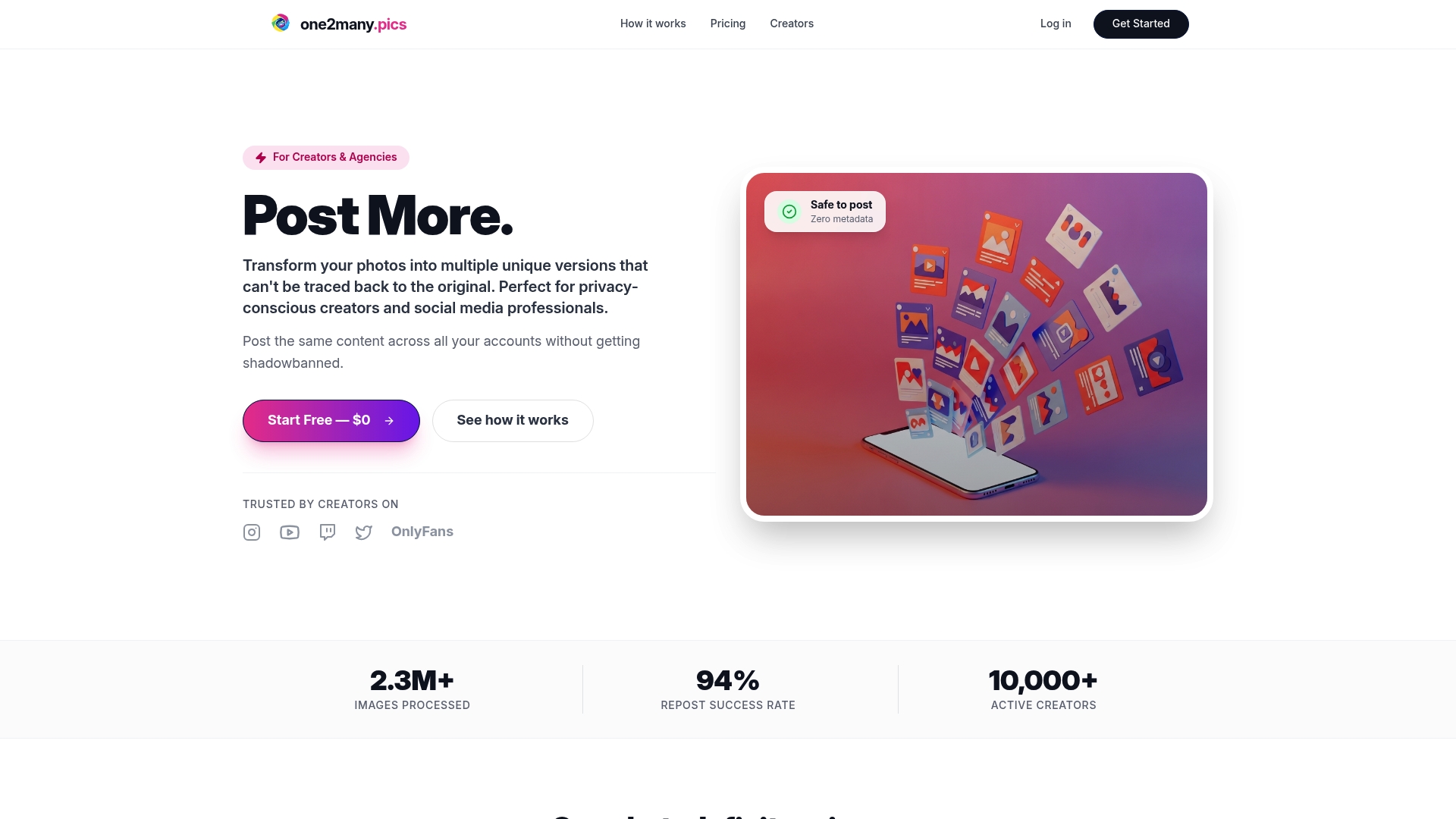
The platform lets you upload original images and generate multiple unique versions with controlled visual variations, all while stripping sensitive metadata automatically. You get different outputs from the same source file, each one distinct enough to avoid duplicate detection on social platforms. Batch processing handles volume, and secure download options keep your files contained. For agencies managing content across dozens of accounts, or individual creators who post daily, the time savings alone justify the workflow shift. Check out One2many's image variations guide to see how the approach scales in practice.
FAQ
What is customizable image settings in simple terms?
Customizable image settings are the adjustable parameters that control how an image looks and what technical data it carries. These include visual settings like brightness, contrast, and saturation as well as privacy-related settings like metadata fields.
How do I adjust image settings without losing quality?
Use non-destructive editing software that applies adjustments on separate layers without overwriting the original file. When resizing, understand whether resampling is on or off, since resampling permanently changes pixel data.
Why do image settings matter for social media privacy?
Images carry embedded metadata including location, device information, and timestamps. Removing this data before posting protects your digital footprint and prevents platforms or third parties from accessing information you did not intend to share.
What is the difference between a preset and a custom setting?
A preset is a saved combination of multiple settings that you can apply in one step. A custom setting is any single parameter you have adjusted from its default value. Presets are collections of custom settings bundled for repeatable use.
Can customizable image settings help avoid shadowbanning?
Posting visually identical images across multiple accounts triggers duplicate detection systems that can suppress your content. Generating visual variations through controlled image settings customization changes enough pixel-level data to register each post as distinct, which reduces suppression risk.